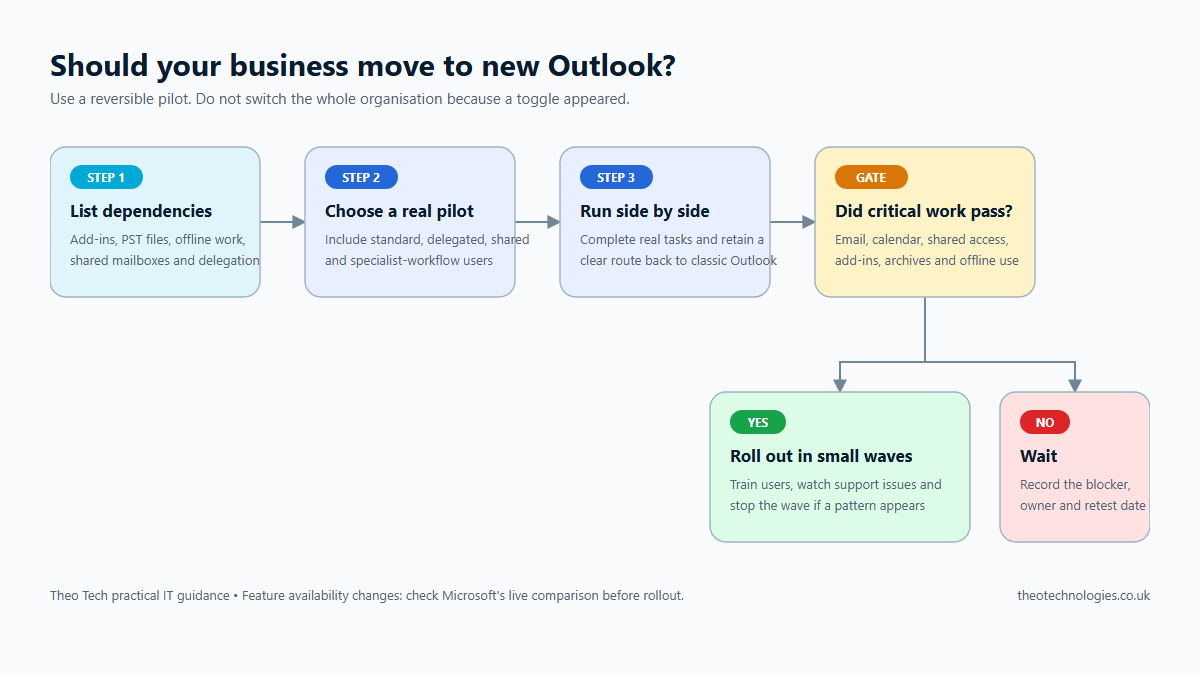
For most businesses, the sensible choice is to test new Outlook with a small group rather than switching everyone at once. Staff who mainly use standard Microsoft 365 email, calendars and contacts may be comfortable in the new application. People who depend on specialist add-ins, delegated mailboxes, local data files or reliable offline work need those workflows tested before migration.
This is not a choice between “old and insecure” and “new and secure”. It is a compatibility and change-management decision. As checked on 29 July 2026, Microsoft’s migration guidance still described new Outlook as being in the opt-in stage and said classic Outlook would remain supported until at least 2029. Those dates and stages can change, so check the live guidance before rollout.
Classic Outlook and new Outlook compared
| Consideration | New Outlook may suit you when | Stay on classic Outlook for now when |
|---|---|---|
| Daily work | Staff mainly use ordinary Microsoft 365 email, calendar, contacts and search. | Staff use specialised or highly customised workflows that have not been tested. |
| Add-ins | Required web add-ins appear in Microsoft’s current supported-feature list and pass testing. | A business-critical COM add-in is required. Microsoft’s comparison currently lists COM add-ins as unsupported in new Outlook. |
| Shared work | Shared mailboxes, delegation and calendars behave correctly in a pilot. | Assistants, teams or service desks depend on shared-mailbox delegate access, which Microsoft’s comparison currently lists as partial. |
| Offline work | Users normally have dependable internet and the required offline features work in tests. | Users regularly work with limited connectivity. Microsoft currently lists offline support as partial. |
| Local archives | Required data is held in supported Microsoft 365 services or tested workflows. | Users depend on PST workflows that have not been validated. Microsoft currently lists PST support as partial. |
| Rollback | Both versions can be retained during a controlled pilot. | The organisation has no tested route back or support plan. |
Microsoft updates its feature comparison over time. Treat the live list as a pre-change check, not something to read once and archive indefinitely.
A safe migration process
1. List the workflows that matter
Do not start with a generic feature checklist. Ask teams what would stop them doing their jobs. Common examples include CRM or document-management add-ins, delegated executive mailboxes, shared calendars, mail merge, archive files, offline access and line-of-business software that opens Outlook.
Record the owner of each workflow and how it will be tested. “Email opened successfully” is not enough if the real job is filing a customer message into another system or sending from a shared address.
2. Select a representative pilot group
Include a straightforward user, a shared-mailbox user, somebody who delegates calendar or email access, a mobile or intermittent-connectivity user and a user of every important integration. A pilot made only of technically confident volunteers can hide operational problems.
3. Run both versions side by side
Microsoft documents running new and classic Outlook side by side. Keep classic Outlook available while pilot users complete real work in new Outlook. Define how they switch back and where they report issues.
4. Test outcomes, not appearances
- Send from the correct personal and shared addresses.
- Find historic correspondence and any required archives.
- Manage shared calendars and delegated work.
- Use required signatures, rules and add-ins.
- Work acceptably during poor connectivity.
- Open links and files in approved business applications.
- Follow retention, sensitivity and security processes.
5. Decide by user group
The answer does not have to be identical for everyone. Standard office users may migrate first while a finance, operations or service-desk group remains on classic Outlook until a dependency is resolved.
6. Deploy in waves and retain a support route
Publish a short change guide, explain what is different, retain a rollback window and review support issues after each wave. Stop the rollout if a repeated problem affects a business-critical workflow.
When should you wait?
Wait when nobody has checked your required add-ins and delegated workflows, when staff depend on features Microsoft currently lists as unavailable or partial, or when the business cannot explain how users would return to classic Outlook during a failed rollout.
Practical recommendation
Treat new Outlook as a managed application change: inventory dependencies, test representative users, keep the change reversible and expand only when the evidence is positive. That is safer than blocking the new application indefinitely or enabling it for everybody without testing.
Related Microsoft 365 help
Theo Tech provides practical Microsoft 365 support, including controlled application changes, permissions and cloud configuration. Related checks include our Microsoft 365 security review and structured user onboarding and offboarding.
Research reviewed 29 July 2026. Microsoft changes Outlook features and migration stages; recheck the linked Microsoft documentation before making a current deployment decision.