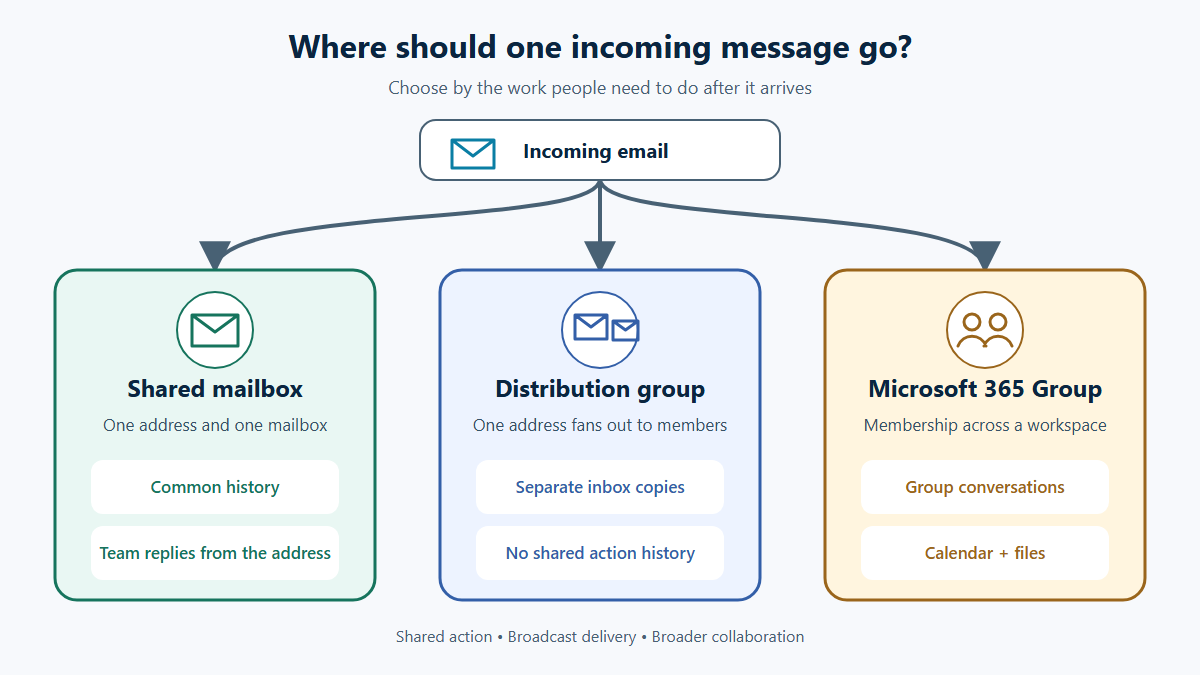
Use a shared mailbox when a small internal team needs one address, a common message history and replies from that address. Use a distribution group when messages only need to reach a defined set of recipients. Use a Microsoft 365 Group when members also need conversations, calendar events and files.
Choose based on what the people behind the address need to do after a message arrives. This guidance is for organisations using Exchange Online in Microsoft 365. Hybrid Exchange, regulated retention, customer-service ticketing, high-volume mail and access by external people need a separate design review.
Decision table
| Requirement | Shared mailbox | Distribution group | Microsoft 365 Group |
|---|---|---|---|
| One email address | Yes | Yes | Yes |
| Common email history | Yes | No shared mailbox history | Group conversation space |
| Reply as the shared identity | Yes, with Send As or Send on Behalf permission | Not its purpose | Possible when the feature and permissions are configured |
| Deliver separate copies to members | Optional through forwarding, but usually not the reason to use it | Yes | Members can follow group conversations in their inboxes |
| Shared calendar | Yes | No | Yes |
| Shared files or workspace | No dedicated file workspace | No | Yes |
| External people as members | No; delegates must be inside the organisation | Mail contacts can be members if the organisation permits it | Guest collaboration is supported, subject to tenant settings |
| Best fit | Accountable team communication | Announcements and simple routing | A department or project collaborating across Microsoft 365 |
Use a shared mailbox for accountable team communication
Microsoft describes a shared mailbox as a mailbox that several people can monitor and send from using a common address. It includes a shared calendar. It is the clearest choice when the business needs one correspondence history and staff must reply as the business function rather than from personal addresses.
- Full Access lets a person open the mailbox and work with its contents, but it does not by itself let that person send from the address.
- Send As makes the message appear to come from the shared mailbox.
- Send on Behalf makes the sender visible, for example “Alex on behalf of Accounts”.
For normal operation, staff usually need Full Access plus the chosen sending permission. Direct sign-in to the shared-mailbox account should remain blocked; delegates access it through their own licensed Exchange Online mailboxes.
There is an important sent-mail setting to check. Microsoft says messages sent from a shared mailbox are stored in the individual sender’s Sent Items by default, not in the shared mailbox. If the team needs a complete visible record, configure the shared mailbox to retain copies of messages sent as it or on its behalf, then test the behaviour.
Microsoft currently documents a maximum of 25 users for a shared mailbox because larger numbers of simultaneous users can experience connection or duplicate-message problems. For a larger audience, use a Microsoft 365 Group or a proper service-management workflow instead of stretching a shared mailbox beyond its intended operating model.
Use a distribution group for broadcast and simple routing
A distribution group sends mail to a set of members without requiring the sender to type every recipient. Each recipient receives their own copy. There is no shared inbox showing the original delivery, who took responsibility or what another member replied.
That makes distribution groups suitable for notices such as all-staff@, managers@ or a controlled operational alert. They are weak for accounts, purchasing, support or website enquiries where the organisation needs a common history and clear ownership.
Assign at least one accountable owner, document who can change membership and decide whether outside senders are allowed. If a list accepts external mail, review that exposure deliberately rather than enabling it by habit.
Use a Microsoft 365 Group for wider collaboration
Microsoft 365 Groups are built for collaboration. Microsoft says members receive a group email address and a shared workspace for conversations, files and calendar events; a group can also connect to Teams or Planner. Members can receive group conversations in their personal inboxes depending on subscription settings.
Choose this model when email is only one part of a department or project workspace. Do not create a Group solely because it offers more features. The additional site, files, membership and lifecycle also need ownership. If the real requirement is “send this notice to these people”, a distribution group remains easier to understand.
A Microsoft 365 Group is not an in-place upgrade path from a shared mailbox. Microsoft states that a shared mailbox cannot be migrated directly to a Microsoft 365 Group, so choose the operating model before a mailbox accumulates years of business correspondence.
Five practical examples
- Accounts queries: use a shared mailbox so authorised staff can see the correspondence and reply from the company address. Decide how invoices or transactions move into the finance system.
- All-staff announcements: use a controlled distribution group when replies and shared history are unnecessary. Restrict who can send if the list reaches the whole business.
- Tender project: use a Microsoft 365 Group, often through Teams, when members need messages, meetings and shared files with one managed membership.
- Website enquiries: use a shared mailbox for a modest, owned enquiry process. Move to a CRM or ticketing workflow when assignment, service levels, reporting or volume exceed what a mailbox can manage.
- Directors’ updates: a restricted distribution group may be enough for broadcast. Use a governed collaboration space if papers, decisions and continuing records also need shared ownership.
Ownership, permissions and leavers
Every option needs a business owner and a technical owner. The business owner defines purpose, membership and acceptable use. The technical owner implements permissions, reviews exceptions and removes access.
A leaver process should remove the person’s membership and delegated permissions without deleting the shared resource. Review Send As, Send on Behalf and Full Access separately because they are distinct grants. Also transfer ownership if the leaver owns a distribution group or Microsoft 365 Group. Coordinate this with the wider user onboarding and offboarding process.
For files attached to a Microsoft 365 Group or Teams workspace, use the same ownership principle described in the OneDrive versus SharePoint guide: continuing business information should not depend on one employee’s personal storage.
Setup checklist
- Write down whether the need is shared action, broadcast or broader collaboration.
- Name a business owner and a technical owner.
- Define membership and who approves changes.
- For a shared mailbox, grant Full Access and Send As or Send on Behalf deliberately.
- Decide whether sent messages must be copied into the shared Sent Items folder.
- Decide whether external senders, automatic replies or forwarding are required.
- Test delivery, replies, signatures, search and mobile access using delegated accounts.
- Document the leaver and ownership-transfer process.
- Review membership, unused resources and exceptions periodically.
- Recheck current Microsoft licensing before using archive, hold, retention or advanced compliance features.
Licensing and scale checks
A shared mailbox can currently store up to 50 GB without its own licence, but every person accessing it needs a licensed Exchange Online mailbox. Microsoft documents extra licensing requirements for more than 50 GB, in-place archiving, litigation hold and some advanced security or compliance features. Licensing changes, so validate the exact tenant and subscription rather than relying on an old comparison article.
Shared mailboxes are not customer-service platforms. If the process needs assignment, queues, collision detection, response-time reporting, approvals or an audit trail beyond ordinary email history, use a ticketing, CRM or case-management system.
Practical recommendation
Use the smallest tool that matches the operating need: broadcast needs a distribution group; shared responsibility needs a shared mailbox; broader team collaboration may need a Microsoft 365 Group. The right choice is the one whose ownership, access and history remain understandable when staff and projects change.
Theo Tech can help design and review a workable Microsoft 365 email and collaboration structure, including delegated access, group ownership and leaver controls. If the current setup has unclear permissions or unanswered shared mail, ask Theo Tech to review it.
Research reviewed 1 September 2026. Microsoft can change mailbox, group, licensing and permission behaviour; recheck the linked primary sources before a migration or material configuration change.
Primary sources
- Create a shared mailbox, Microsoft Learn; checked 1 September 2026.
- About shared mailboxes in Microsoft 365, Microsoft Learn; checked 1 September 2026.
- Configure shared mailbox settings, Microsoft Learn; checked 1 September 2026.
- Compare types of groups in Microsoft 365, Microsoft Learn; checked 1 September 2026.
- Create distribution groups in the Microsoft 365 admin center, Microsoft Learn; checked 1 September 2026.